![ExpensePoint White Logo.png]](https://support.expensepoint.com/hs-fs/hubfs/ExpensePoint%20Logos/ExpensePoint%20White%20Logo.png?height=40&name=ExpensePoint%20White%20Logo.png)
Your ExpensePoint subscription and invoices now live in a billing portal you can access yourself, at any time. This short guide covers what you will find there.
The portal is provided by Maxio, our billing platform, so you will see "Powered by Maxio" at the bottom of each page. Emails about it come from billing@expensepoint.com.
Access the portal
- Open the invitation email from billing@expensepoint.com and select the portal link
- Follow the prompts to confirm your email and access your account
- Go to My Account and select Set Password to create a password for future visits
If you haven’t received an invitation or need help accessing the portal, email billing@expensepoint.com.
View your subscriptions
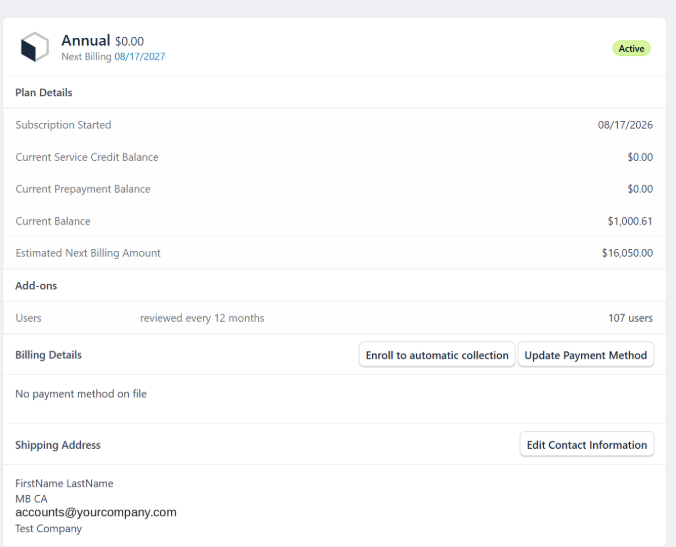
The Subscriptions tab shows your current plan and what to expect next:
- Next billing date and the date your subscription started.
- Current balance and estimated next billing amount.
- Add-ons, such as the number of users on your account and how often that is reviewed.
- Billing details: your payment method, if one is saved.
- Contact information for the subscription.
- Open: issued and awaiting payment.
- Voided: cancelled. Nothing is owed, and the record is kept for your reference.
View and download invoices
The Invoices tab lists your invoices with their number, issue date, due date, total and amount outstanding. Select View to open one, where you can download a PDF or pay online.

You may see two statuses:
Paying an invoice
- Open the Invoices tab and select View beside the invoice you want to pay
- Select Pay Invoice Online
- Follow prompts to complete your payment using an available payment method
Add or update a payment method
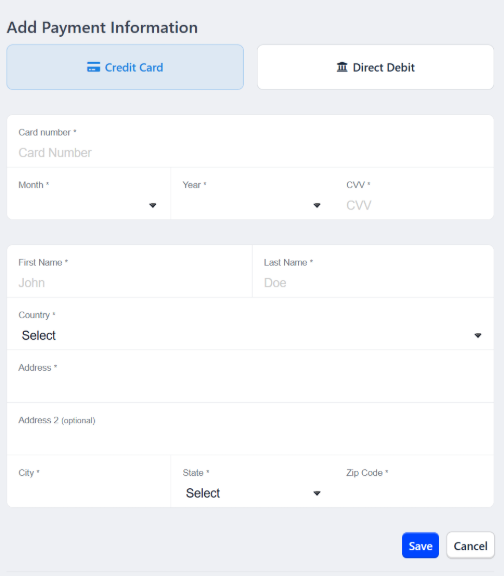
On the Subscriptions tab, select Update Payment Method. Enter your payment details and select Save. Saving a payment method does not enrol you in automatic collection. For your security, please add payment details directly in the billing portal. We will never ask for card or bank details by email or over the phone.
Set up automatic payments
To have invoices charged automatically to your saved payment method, select Enroll to automatic collection on the Subscriptions tab and follow the prompts.
You can add a payment method without enrolling; the two are separate choices.
Update your account details
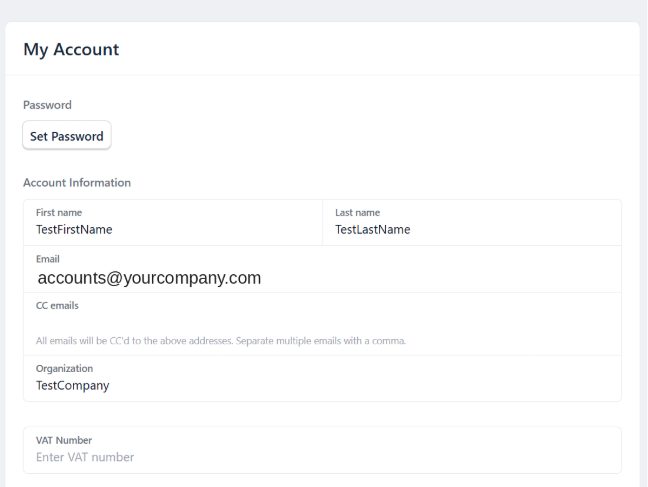
On My Account you can set a password, update your name and email address, and add your organisation and VAT number.
To send copies of billing emails to your accounts payable team or additional contacts, add their email address under CC emails. Separate multiple addresses with a comma.
Get help
For subscription cancellations or plan changes, contact Customer Success at customer.success@expensepoint.com. These requests are not handled in the portal.
For billing questions, email billing@expensepoint.com, or call:
- North America: +1-866-452-3614,option 4
- International:+1-204-452-3614,option 4 .