![ExpensePoint White Logo.png]](https://support.expensepoint.com/hs-fs/hubfs/ExpensePoint%20Logos/ExpensePoint%20White%20Logo.png?height=40&name=ExpensePoint%20White%20Logo.png)
Policies provide clear and specific guidelines for employees about which expenses are allowed, disallowed, or subject to certain conditions. By setting spending limits and restrictions, policies help control costs and prevent excessive or unauthorized spending. ExpensePoint automates policy checks by flagging or blocking expenses that violate policy rules. This helps prevent policy breaches before they occur.
New Policy Controls
Three new policy controls have been introduced to enhance report management:
-
Daily Limits (Category Daily User Total)
Allows administrators to set a limit for how much a user can spend in a day. If the total amount spent in a report, for a given category, on a given day exceeds the set limit, the system will flag all transactions in that category for that day. -
Conflict Restrictions (Conflicting Category)
Allows administrators to set restrictions on which categories can coexist in one report. If a report contains transactions from two categories that are not allowed in the same report (e.g.: mileage and ride-share), all transactions will be flagged. -
Expense & Transaction Limits (Report Line Items)
Allows administrators to set a limit on how many expenses can be included in a report. If there are more than the allowed number of expenses in a report, the system will flag all expenses.
Steps to Add New Policy for Daily Limits
-
Access the Policy Manager
Click on the Policy Manager module at the top of the ExpensePoint window.
-
Select Add New Policy
From the left side of the screen, in the Author Policy Tasks navigation menu, select Add New Policy.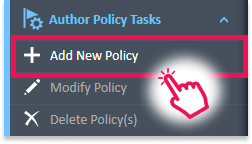
-
Open the Author Policy Window
This will open the Author Policy window, where you can create your new policy.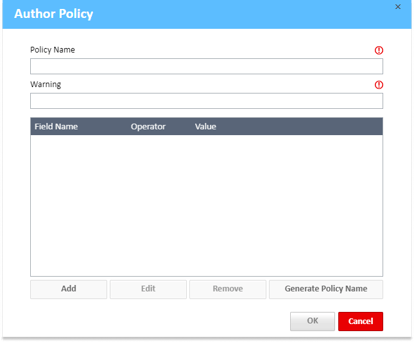
-
Add a New Condition
Select the Add button below the conditions table.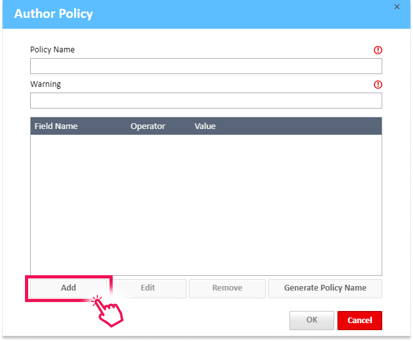
-
Condition Editor
This will open the condition editor, fill in the mandatory fields as follows:-
Field Name
From the Field Name drop-down, select the Category Daily User Total option. -
Operation
From the Operation drop-down, select the Greater Than option. -
Value Type
From the Value Type drop-down, select the Enter Amount option. -
Value
In the Value field, enter the dollar amount you wish to set as the limit.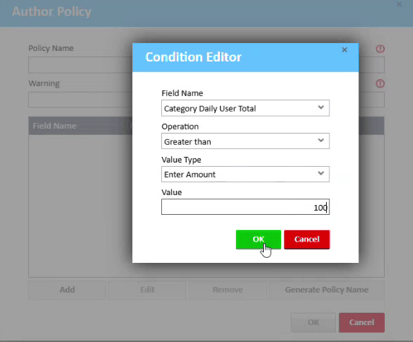
-
Save
Tap the OK button in the condition editor to add the condition to the policy.
-
-
Enter Policy Details
Fill in the following fields with the policy details:-
Policy Name
Name the policy according to the conditions for easy reference. -
Warning
Enter the warning message that users will receive if they violate the policy. -
Conditions
Add any other required conditions to make the policy as narrow as possible.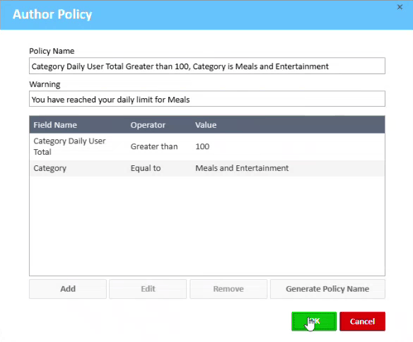
-
-
Save
Tap the OK button in the Author Policy window to save the policy.
Steps to Add New Policy for Conflicts
-
Access the Policy Manager
Click on the Policy Manager module at the top of the ExpensePoint window.
-
Select Add New Policy
From the left side of the screen, in the Author Policy Tasks navigation menu, select Add New Policy. -
Open the Author Policy Window
This will open the Author Policy window, where you can create your new policy.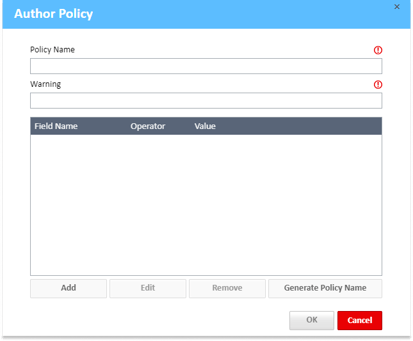
-
Add a New Condition
Select the Add button below the conditions table. -
Condition Editor
This will open the condition editor, fill in the mandatory fields as follows:-
Field Name
From the Field Name drop-down, select the Conflicting Category option. -
Operation
From the Operation drop-down, select the Equal To option. -
Value Type
From the Value Type drop-down, select the Select Category option. -
Value
In the Value field, select the conflicting category, for example, Mileage.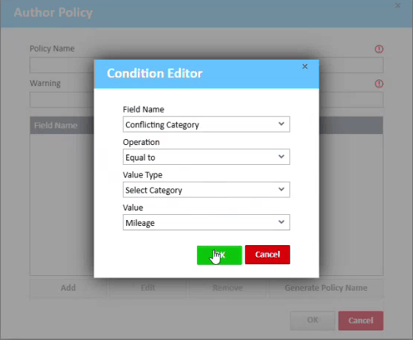
-
Save
Tap the OK button in the condition editor to add the condition to the policy.
-
-
Second Condition
Fill in the mandatory fields for the second condition as follows:-
Field Name
From the Field Name drop-down, select the Conflicting Category option. -
Operation
From the Operation drop-down, select the Starts With option. -
Value Type
From the Value Type drop-down, select the Enter Text option. -
Value
In the Value field, enter the conflicting category, for example, Auto.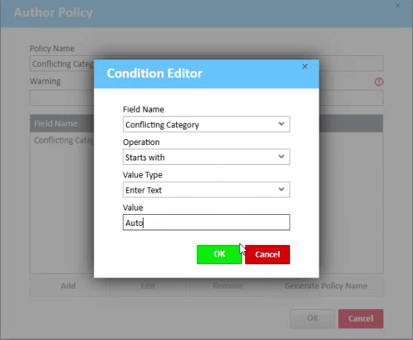
-
Save
Tap the OK button in the condition editor to add the condition to the policy.
-
-
Enter Policy Details
Fill in the following fields with the policy details:-
Policy Name
Name the policy according to the conditions for easy reference. -
Warning
Enter the warning message that users will receive if they violate the policy. -
Conditions
Add any other required conditions to make the policy as narrow as possible.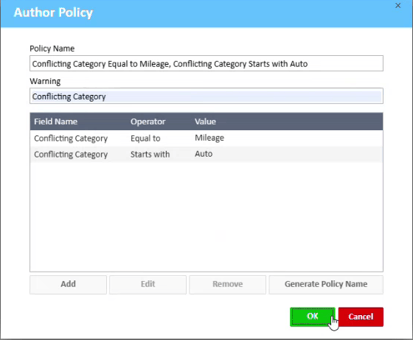
-
-
Save
Tap the OK button in the Author Policy window to save the policy.
Steps to Add New Policy for Expense Limits
-
Access the Policy Manager
Click on the Policy Manager module at the top of the ExpensePoint window. -
Select Add New Policy
From the left side of the screen, in the Author Policy Tasks navigation menu, select Add New Policy. -
Open the Author Policy Window
This will open the Author Policy window, where you can create your new policy. -
Add a New Condition
Select the Add button below the conditions table. -
Condition Editor
This will open the condition editor, fill in the mandatory fields as follows:-
Field Name
From the Field Name drop-down, select the Report Line Items option. -
Operation
From the Operation drop-down, select the Greater Than or Less Than option. -
Value Type
From the Value Type drop-down, select the Enter Amount option. -
Value
In the Value field, enter the number of your choice.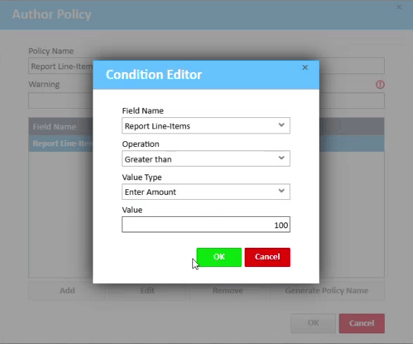
-
Save
Tap the OK button in the condition editor to add the condition to the policy.
-
-
Enter Policy Details
Fill in the following fields with the policy details:-
Policy Name
Name the policy according to the conditions for easy reference. -
Warning
Enter the warning message that users will receive if they violate the policy. -
Conditions
Add any other required conditions to make the policy as narrow as possible.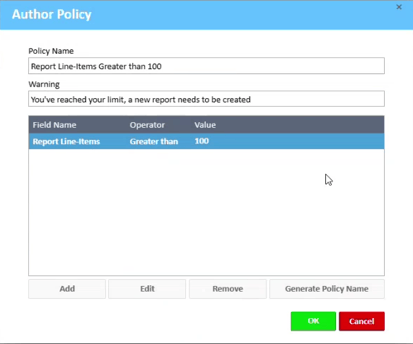
-
-
Save
Tap the OK button in the Author Policy window to save the policy.