![ExpensePoint White Logo.png]](https://support.expensepoint.com/hs-fs/hubfs/ExpensePoint%20Logos/ExpensePoint%20White%20Logo.png?height=40&name=ExpensePoint%20White%20Logo.png)
ExpensePoint Realtime gives cardholders real-time visibility into eligible card transactions. Transactions will appear in ExpensePoint after authorization.
Enable ExpensePoint Realtime
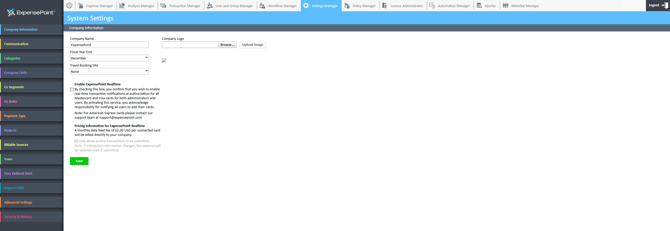
- Open Settings Manager
- Select Company Information from the menu
- Locate the Enable ExpensePoint Realtime setting
- Select the checkbox beside Enable ExpensePoint Realtime
- Review the pricing and service information shown on the page
- Configure when users can submit authorized transactions with the Only allow posted transactions to be submitted setting
- When Only allow posted transactions to be submitted is selected: Users can build draft expenses, but they cannot submit a report containing an unposted transaction
- When the setting is cleared: Users can submit a report containing an unposted transaction so it can move through review sooner. Accounting cannot approve the report until the transaction posts. If the amount changes between authorization and posting, ExpensePoint updates the expense automatically.
- Select Save
Users may now enroll their cards for ExpensePoint Realtime.
ExpensePoint Realtime currently supports eligible Visa and Mastercard business cards. For American Express cards or questions about card eligibility, contact ExpensePoint Support at support@expensepoint.com.
See here if you have bulk card feeds.
Understanding Realtime Transaction Statuses
- Authorized or Unposted: The card provider has approved the transaction, but the final amount is not yet available. The cardholder receives a notification and can begin completing the expense.
- Posted: The card provider has finalized the transaction. ExpensePoint updates the expense with the posted amount, and Accounting can approve the report.
- Voided: The authorization was reversed, such as when a temporary hold is released. The expense amount changes to $0 and the transaction displays as Voided. Remove the voided expense from the report before submitting it.
Switching from Plaid to ExpensePoint Realtime
To review or remove Plaid connections:
- Open Settings Manager
- Select Company Information from the menu
- Deselect Plaid connection option
- Inform cardholders to remove their Plaid bank connection
We recommend removing active user Plaid connections. Plaid connections that remain active may continue to generate Plaid charges, even after your company enables ExpensePoint Realtime.