![ExpensePoint White Logo.png]](https://support.expensepoint.com/hs-fs/hubfs/ExpensePoint%20Logos/ExpensePoint%20White%20Logo.png?height=40&name=ExpensePoint%20White%20Logo.png)
Welcome to the ExpensePoint® app! Book a quick demo call with us to unlock the app's full potential and make the most of your experience.

After the demo, your user email will be set up on the ExpensePoint® system. A welcoming email will be sent to you by one of our representatives with instructions on how to change the password for your user account.
By clicking on the link from the email, you will be redirected to the login screen through your web browser.
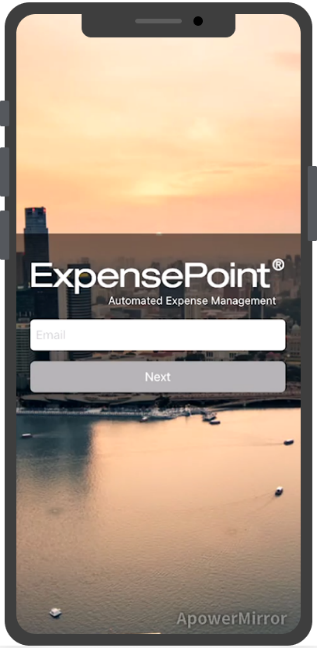
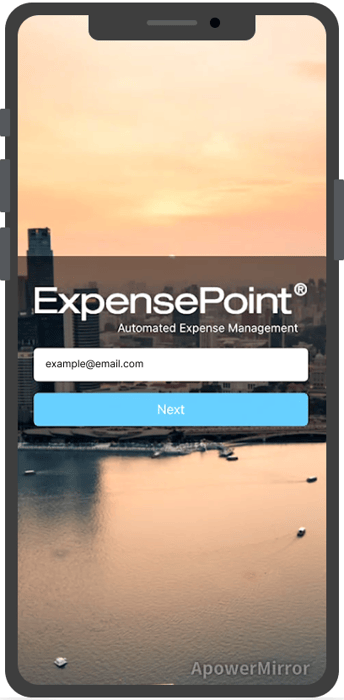
From there, enter your email address and click Next. The new screen will require you to enter the password and provide you with the option to reset the password. Click on the Forgot Password link.
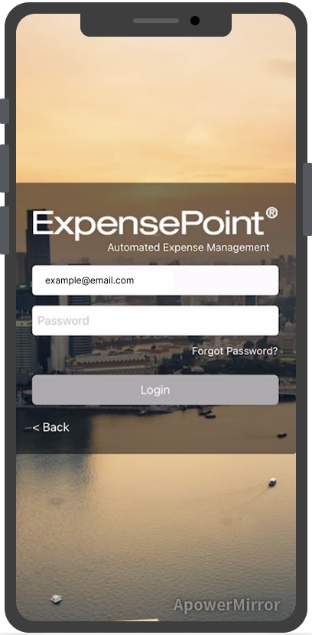
A message will notify you about the Password Recovery being sent to your email.
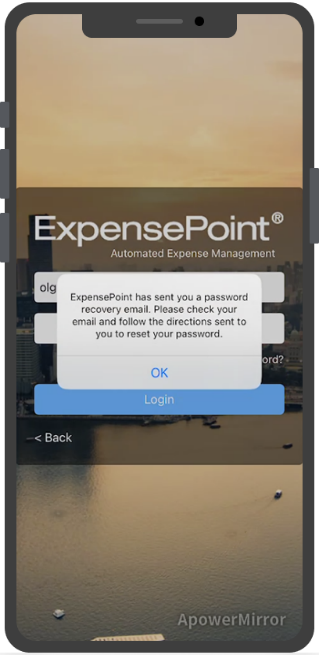
Check your email for Password Recovery and click on the Reset your password link from the email.
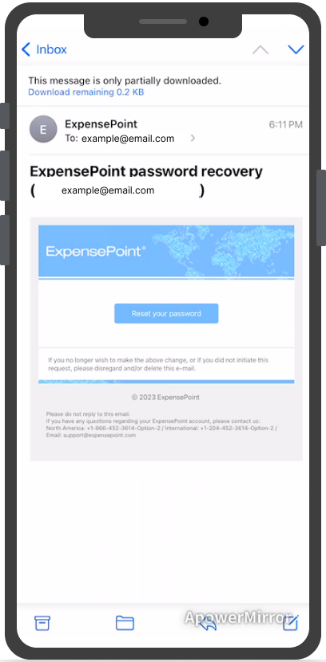
The link will open the password reset page to enter your new password.
- Password strength conditions must be met
- Entered password must be confirmed
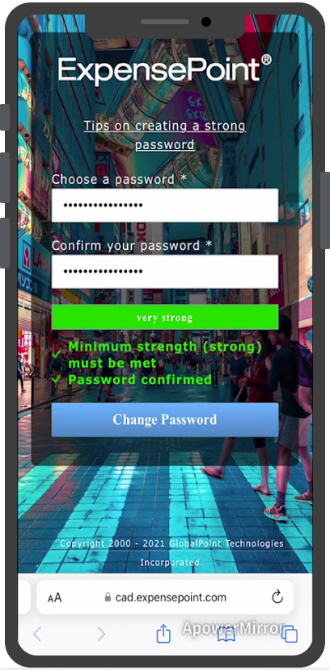
To ensure a strong password:
- Use a minimum of 8 characters
- Include a mix of uppercase letters, lowercase letters, numbers, and special characters (e.g.,!, @, #, $, %, ^, &)
Once you reset the password, a message will notify you about its success status.
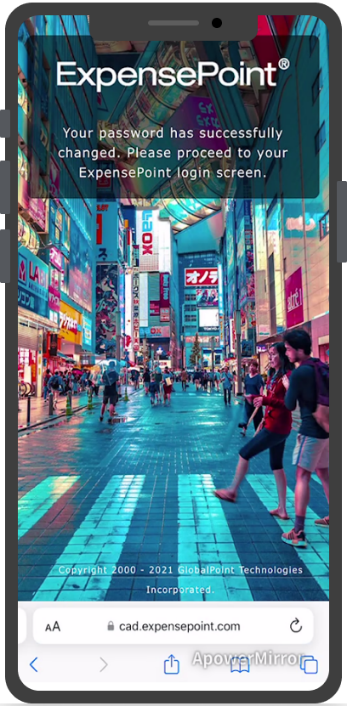
To proceed with your new password, go to the Login page and enter your email and the new password to authenticate into the ExpensePoint® system.