![ExpensePoint White Logo.png]](https://support.expensepoint.com/hs-fs/hubfs/ExpensePoint%20Logos/ExpensePoint%20White%20Logo.png?height=40&name=ExpensePoint%20White%20Logo.png)
Administrators can now mark a tax line specifically as a tip and assign it to relevant expense categories. This feature makes it easier to track gratuities by capturing tips separately rather than combining them with the total transaction amount. As a result, users benefit from a more transparent and straightforward expense entry experience, and finance teams gain better visibility into tip-related spending. This enables improved reporting accuracy, budgeting, and compliance with tax regulations.
Steps to Add the Tips Option
- Open Settings Manager
From the top of your screen, click the Settings Manager module.
- Access the Taxes Section
Click on Taxes in the left-side navigation menu. - Select Add Taxes
Click on the Add Taxes option from the Taxes navigation menu.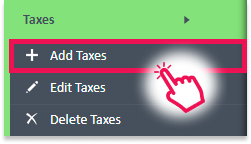
- Check Is Tip
In the Tax Editor window, check the Is Tip checkbox.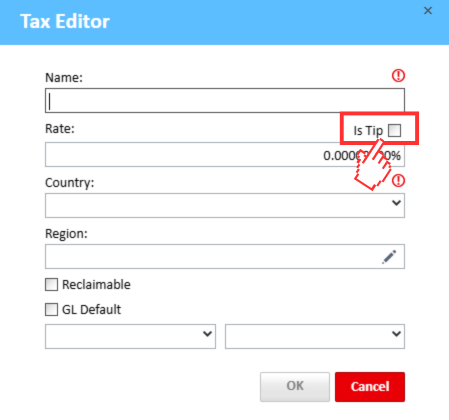
- Fill in and Save
Complete the remaining required fields, then click the OK button to save.
After saving, the new tip option will appear in the Tax List within the Taxes workspace.
For more information on how to Add Taxes, please refer to this article.