![ExpensePoint White Logo.png]](https://support.expensepoint.com/hs-fs/hubfs/ExpensePoint%20Logos/ExpensePoint%20White%20Logo.png?height=40&name=ExpensePoint%20White%20Logo.png)
To streamline transaction management, you can assign a credit card to a specific user. This assignment is a one-time step. Once a card is linked to a user, all existing transactions for that card will be assigned to them. In the future, any new transactions made with that card will automatically be assigned to the same user without any additional action needed, as long as the card number does not change.
Steps to Assign a Card to a User
- Open the Transaction Manager
Navigate to the Transaction Manager module at the top of the window.
- Select the Template
In the workspace, select the desired Template name.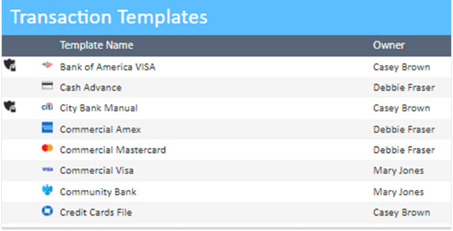
You can either double-click the template or click the View Imports option from the Template navigation menu.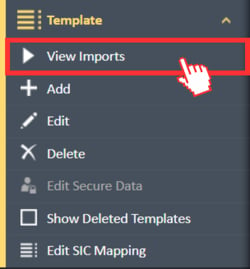
- Select the File
This will display all files imported through the selected template. Choose the specific imported file name from the list.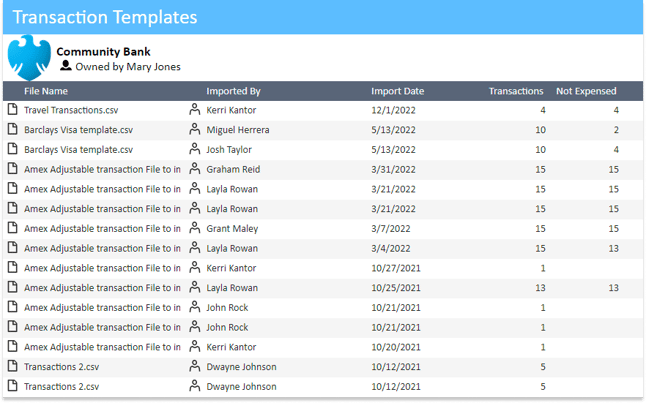
Double-click the file or click the View Transactions option from the Imports navigation menu.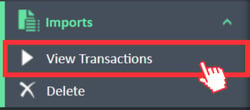
- Assign the Card to a User
In the transaction list, locate the Username column, which appears blank if the card has not yet been mapped to a user.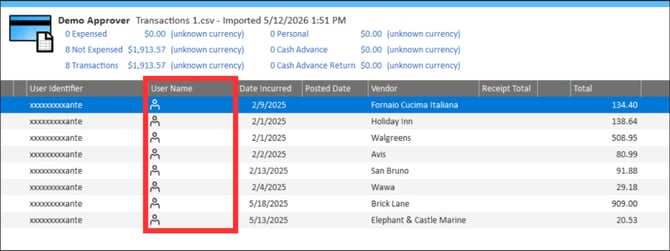
Highlight one of the transactions from the intended user, then select Assign To User from the left-side menu options.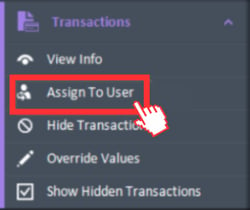
From the user list that appears, select the user’s name and click OK.
All transactions for that card will now be assigned to the selected user.-1.png?width=450&height=400&name=image%20(6)-1.png)
Steps to Unassign or Edit a Card’s User
- Open the User and Group Manager
Navigate to the User and Group Manager module at the top of the window.
- Select Modify User
From the User Tasks navigation menu on the left side of the screen, select Modify User.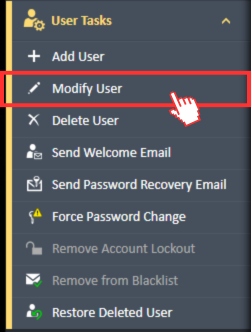
- Remove Credit Card Mapping Information
In the User Defaults tab of the User Editor window, clear the old card information from the Credit Card Mapping field.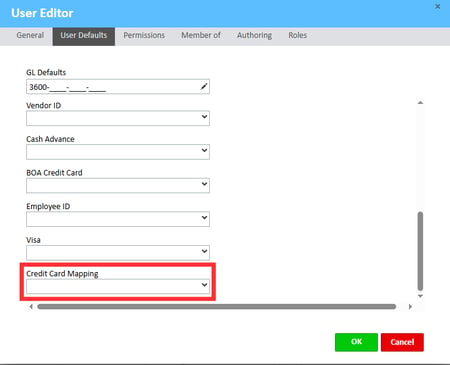
Once the field is empty, follow the steps above to assign the card to a different user if needed.